Self-Hosting Ghost

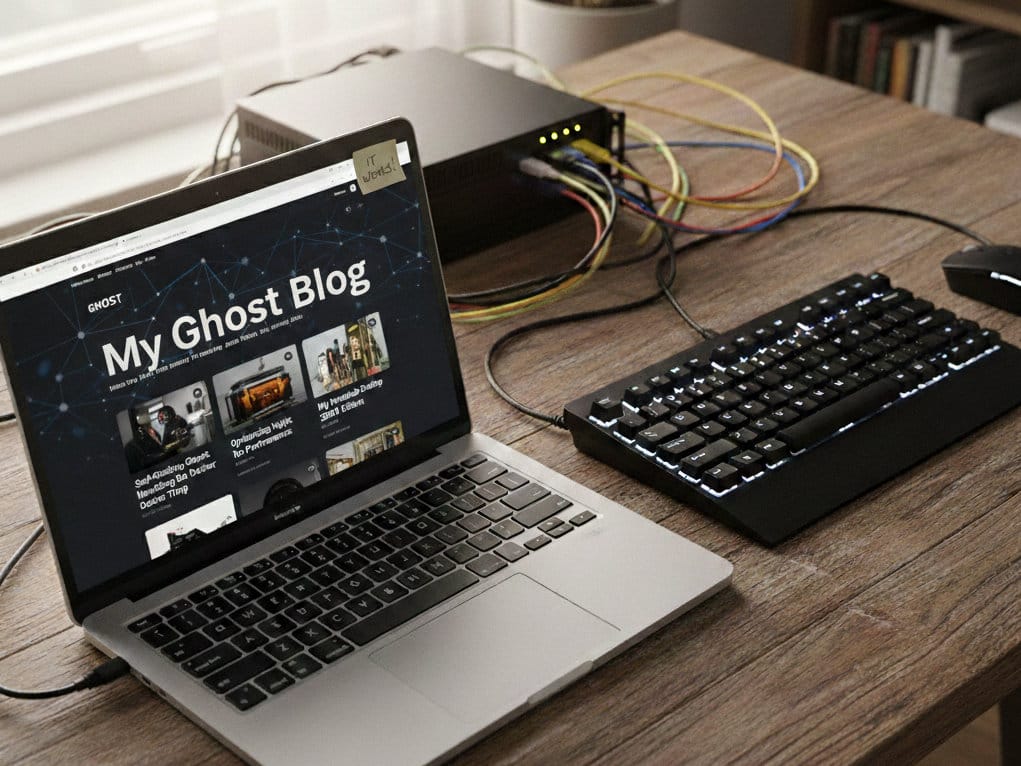
There is a specific kind of satisfaction that comes from seeing your own words hosted on your own hardware. After years of bouncing between third-party platforms, I finally decided to move my writing home. I chose Ghost - it’s clean, professional, and the editor is a dream.
However, as a home server enthusiast running a dozen different services on a single Docker environment, the "official" path wasn’t as plug-and-play as the documentation suggested. If you are running a single-purpose VM, the default setup is great. But if you already have a stack of apps, you have to break the rules a little.
Here is how I got Ghost running alongside my existing apps, and yes, as you read this, it’s being served directly from that very installation.
The "Single App" Constraint
If you head over to the official Ghost documentation for Docker, you’ll find a very polished docker-compose setup. It’s designed to be a "complete" solution, which means it includes:
- The Ghost core application.
- A MySQL database.
- Caddy as a built-in web server/SSL manager.
The problem? The default configuration expects to own ports 80 and 443. On a home server already running a dashboard, a media server, and a file share, those ports are already spoken for by my existing Nginx reverse proxy.
Unless I wanted to spin up an entirely separate Virtual Machine just for a blog, which felt like overkill, I had to gut the default setup and make it play nice with my existing infrastructure.
Modifying the Docker Compose
The goal was simple: keep the Ghost and MySQL containers, but strip out Caddy and let my existing Nginx container handle the SSL certificates and traffic routing.
1. Removing Caddy
In the docker-compose.yml, I deleted the entire Caddy service block. Ghost doesn't need a sidecar server if you already have a proxy at the front door of your network.
2. Exposing the Right Ports
Instead of letting Caddy handle the web traffic, I mapped the Ghost container’s internal port (2368) to a local port on my host.
- Original: No ports exposed (Caddy handled it internally).
- Modification: ports: - "8080:2368"
Configuring the Nginx Reverse Proxy
With the Ghost container humming along on port 8080 (example, not my actual port), I went to my existing Nginx configuration. I created a new site configuration that looks something like this:
server {
    listen 443 ssl;
    server_name blog.myserver.com;

    location / {
        proxy_set_header X-Forwarded-Proto $scheme;
        proxy_set_header Host $http_host;
        proxy_set_header X-Real-IP $remote_addr;
        proxy_set_header X-NginX-Proxy true;
        proxy_set_header X-Forwarded-For $proxy_add_x_forwarded_for;
        proxy_set_header X-Forwarded-Ssl on;
    }
}
It tells Ghost, "Hey, the user is using HTTPS, even though I'm talking to you over HTTP." Without this, you’ll often end up in a frustrating redirect loop.
Success: It’s Alive!
After a quick docker-compose up -d and an Nginx reload, the Ghost setup screen appeared instantly at my domain (make sure your domain is already set up and propagated beforehand).
Setting up Ghost this way took a bit more manual labor than the "one-click" installers, but the result is a much leaner, more integrated home server setup. I’m not wasting resources on an extra web server (Caddy) or an extra VM, and I have full control over my SSL certificates through my central Nginx manager.
If you’ve been hesitant to self-host Ghost because your Docker environment is already "crowded," don't let the official scripts intimidate you. Strip it down to the basics, and it fits right in.
Now that the tech is sorted, I suppose I actually have to start writing!